Quick Start
Get up and running with moneyflow in 5 minutes.
Demo Mode (No Account Required)
Try moneyflow instantly without connecting any accounts:
This loads synthetic spending data so you can explore all features risk-free.
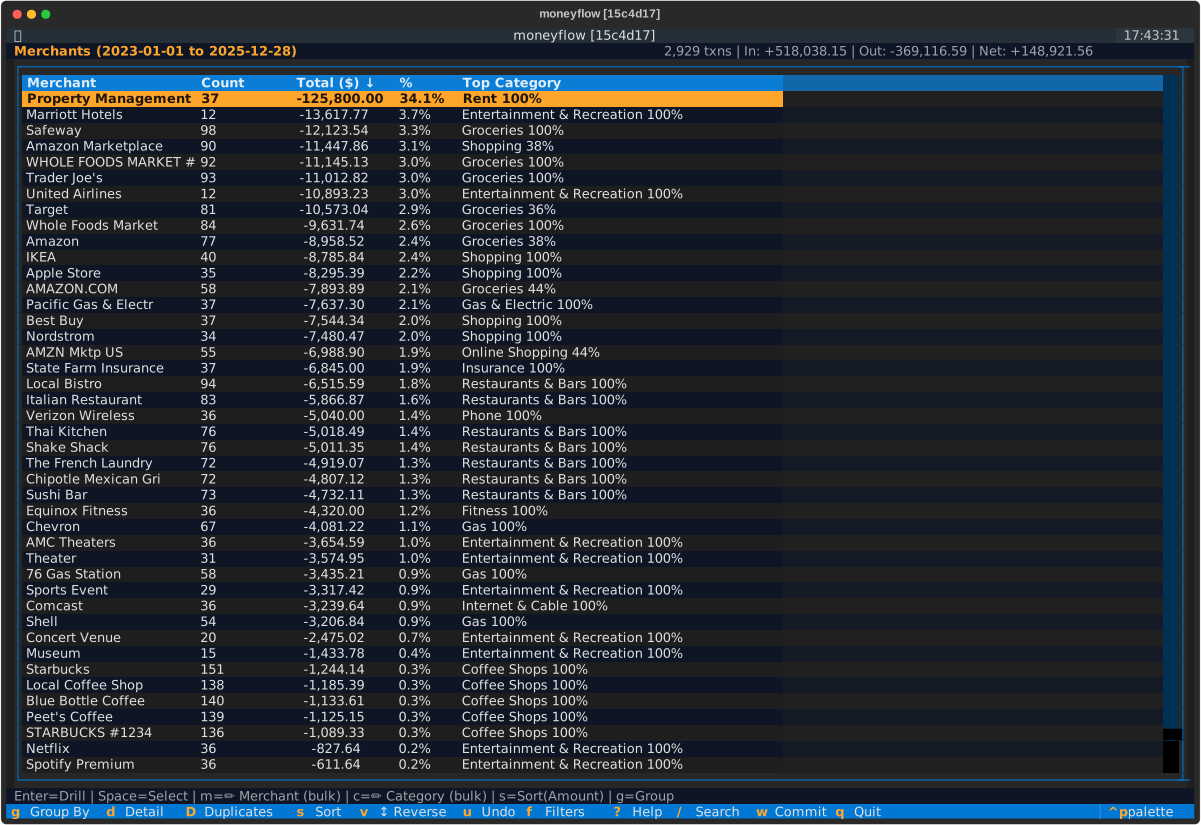
What you'll see:
- ~3,000 transactions across 3 years (2023-2025)
- Realistic spending patterns for dual-income household
- Multiple accounts (checking, savings, credit cards)
- All features enabled
Press G to cycle through views, / to search, Q to quit.
Explore the Views
Press G to cycle through different aggregation views:
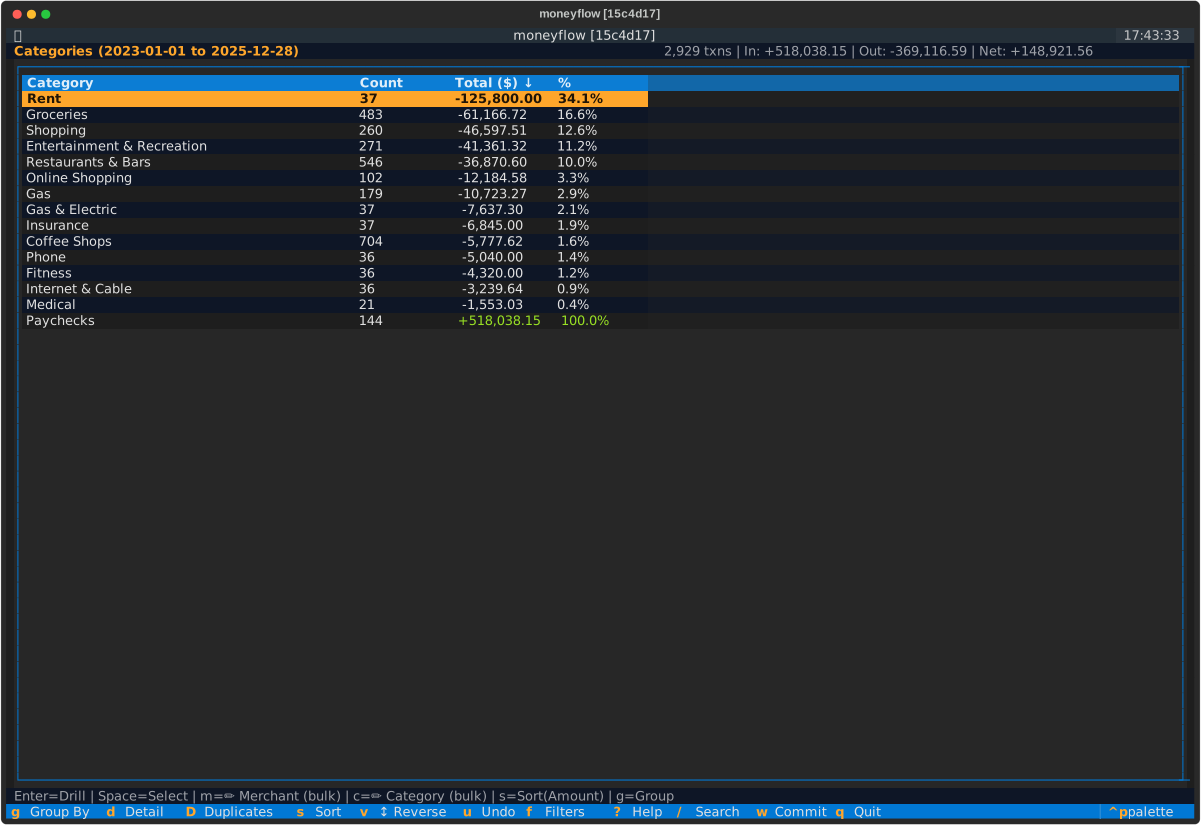 Categories - See spending by category
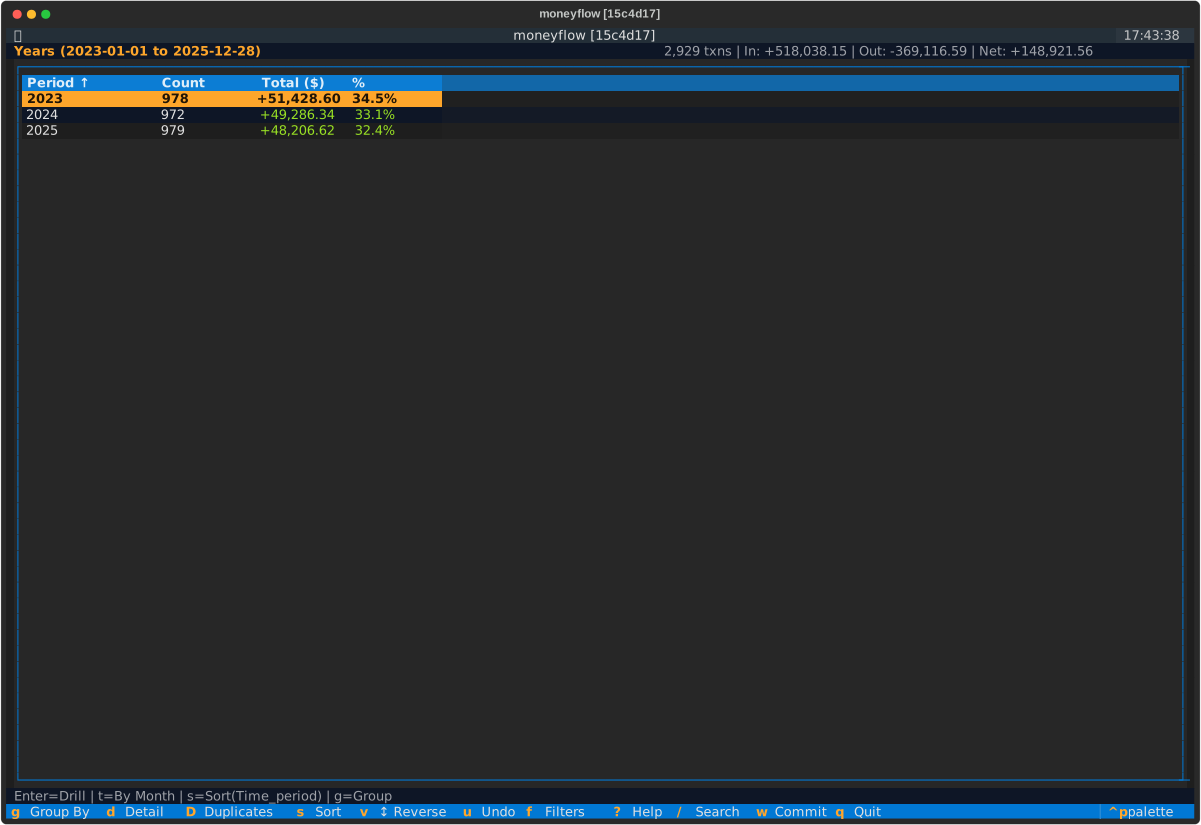 Time - Analyze spending over time
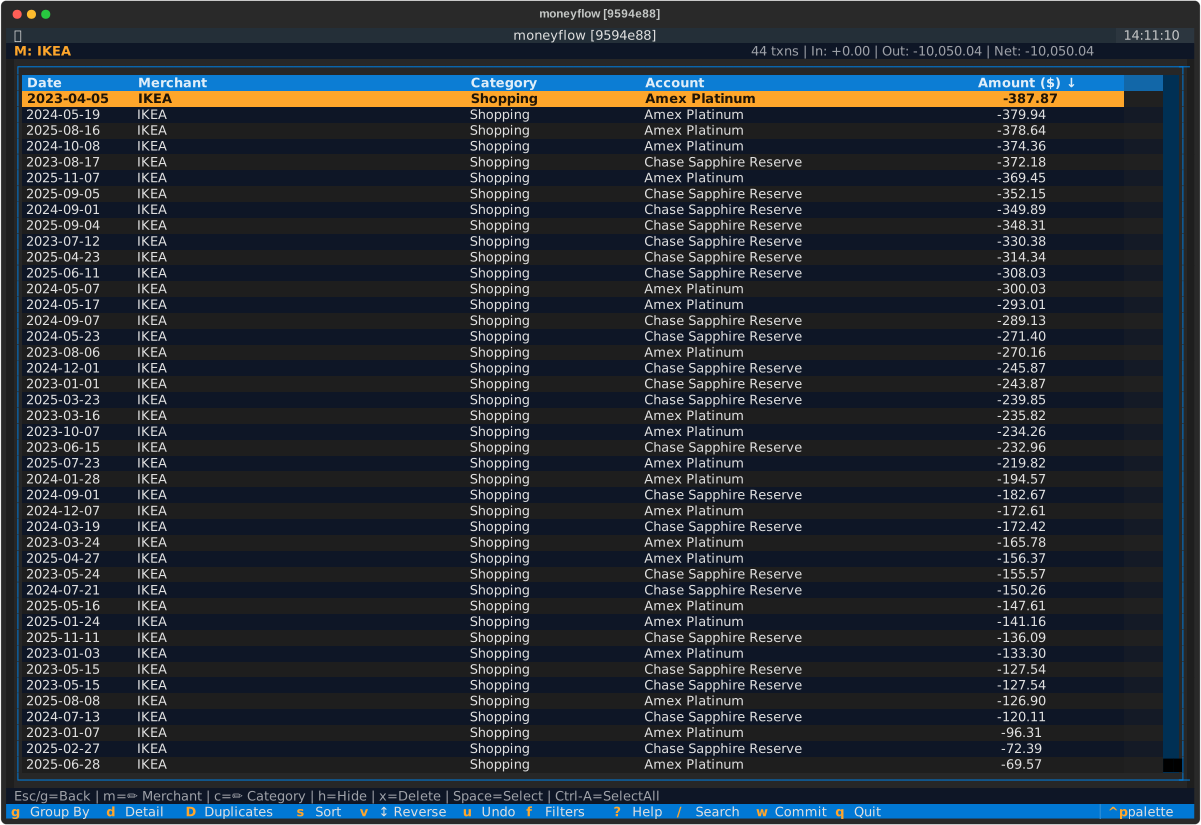
Press Enter on any row to drill down into transaction details:
With Your Finance Platform
Choose your platform:
With Monarch Money
New to Monarch Money?
Get 50% off your first year of Core Plan with this special offer link.
Step 1: Use Direct Sign-In (Not Apple/Google)
Moneyflow authentication will not work with an account using Apple/Google Sign-In even if you create a password and set up MFA for that account. You must use direct sign-in (an email and password).
Follow the instructions in this article.
Do not lose access to your Monarch account!
If you want to use the same email that you have linked with Google/Apple, the best way to do so is to:
- Add another direct email address and password (credential #2)
- Test that you can login to Monarch with credentials #2
- After you have verified that the new credentials work, you can unlink credential #1 and/or remove it
- Add credentials #1 back without linking to Google/Apple
- Test credential #1 again and you can choose to keep or remove credential #2
Step 2: Get Your MFA Secret
Important: Do this BEFORE running moneyflow
You'll need your MFA (multi-factor authentication) secret key. Here's how to get it:
- Log into Monarch Money on the web
- Go to Settings → Security
- If multifactor authentication is enabled, disable it first, then re-enable it to be able to retrieve your MFA secret key
- When shown the QR code, click "Can't scan?" or "Manual entry"
- Copy the MFA secret key, it's a 32 character alphanumeric string (looks something like:
XXXXXXXXXXXXXXXXXXXXXXXXXXXXXXXX) - Finish the MFA setup by confirming the MFA code with your favorite authentication app
Launch moneyflow
On first run, you'll be prompted for credentials:
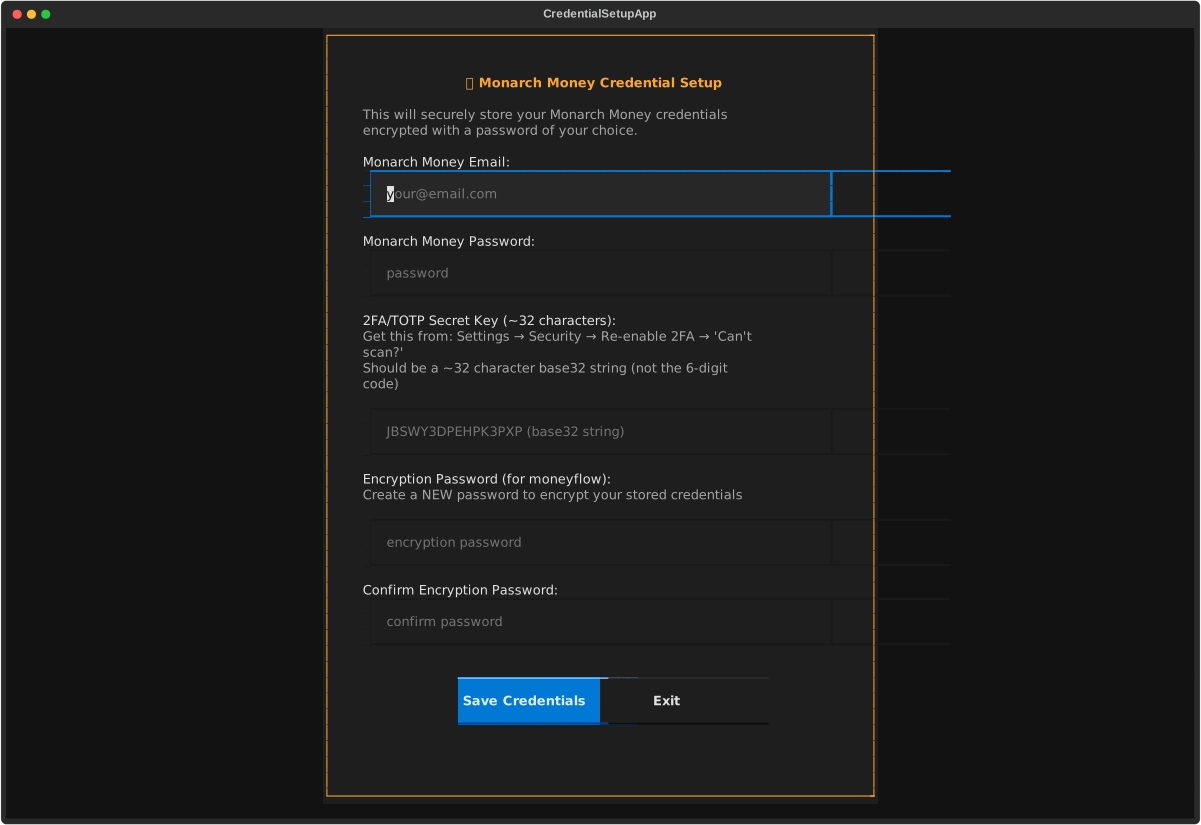
- Monarch Money email - Your login email
- Monarch Money password - Your account password
- MFA Secret - The secret key from Step 2
- Encryption password - Create a NEW password to encrypt your stored credentials
Encryption Password
This is a new password just for moneyflow, not your Monarch password.
Choose something you'll remember - you'll need it each time you launch moneyflow.
Transactions are cached locally after the initial download for instant startup.
With YNAB
Step 1: Get Your Personal Access Token
Important: Generate token BEFORE running moneyflow
You'll need a Personal Access Token from YNAB:
- Log into YNAB
- Go to Account Settings → Developer Settings
- Click "New Token" under Personal Access Tokens
- Enter your YNAB password and click "Generate"
- Copy the token immediately - you won't see it again
Launch moneyflow (YNAB)
On first run, you'll be prompted for:
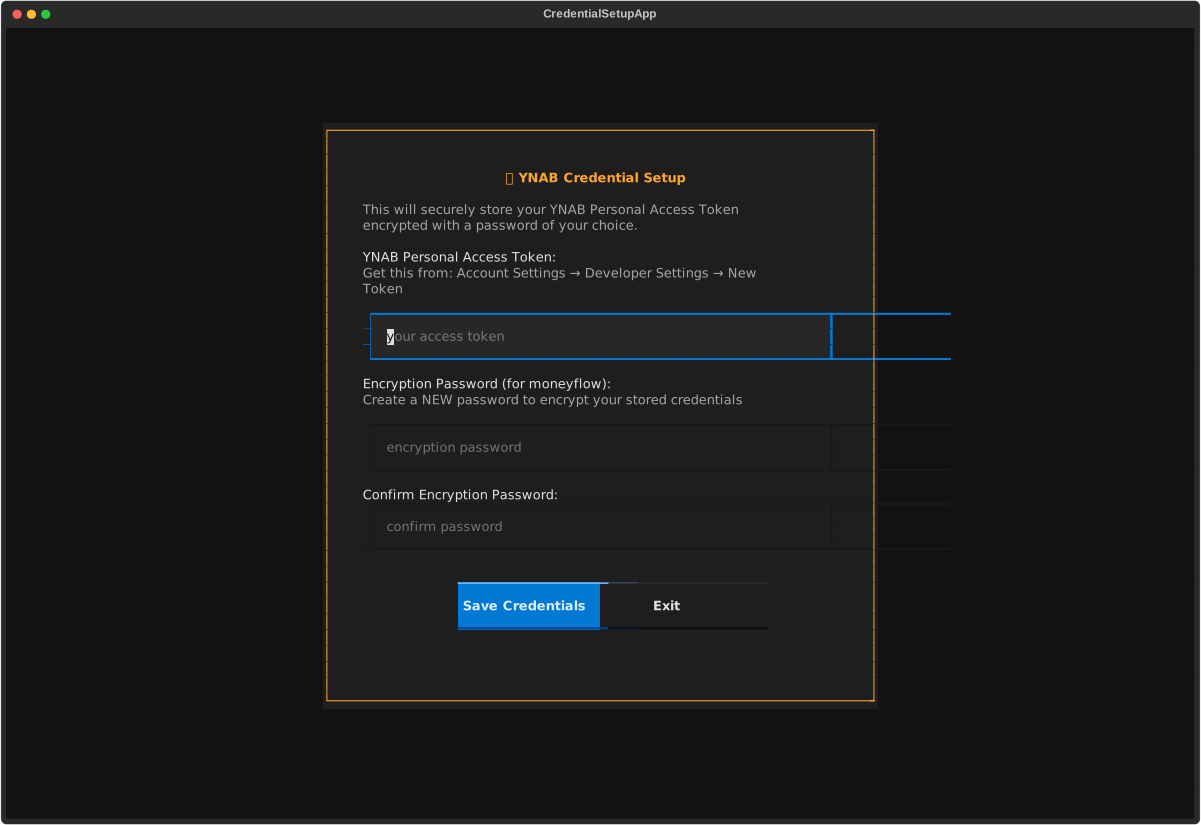
- Backend selection - Choose YNAB
- Personal Access Token - Paste the token from Step 1
- Encryption password - Create a NEW password to encrypt your stored credentials
Multiple Budgets
If you have multiple YNAB budgets, moneyflow will automatically use the first one. Multi-budget selection UI is not yet implemented.
Transactions are cached locally after the initial download for instant startup.
Common First Commands
# Fetch only current year from API (faster for large accounts)
moneyflow --year 2025

# Force refresh from API (ignore cache)
moneyflow --refresh
Note
Caching is enabled by default. Your transactions are stored in an encrypted local cache for fast startup.
Use --refresh to force a fresh download from your backend.
Quick Edit Example
Let's rename a merchant:
- Press G until you see "Merchants" view
- Use arrow keys to find a merchant
- Press M to edit merchant name
- Type the new name, press Enter
- Press W to review changes
- Press Enter to commit to your backend (Monarch/YNAB)
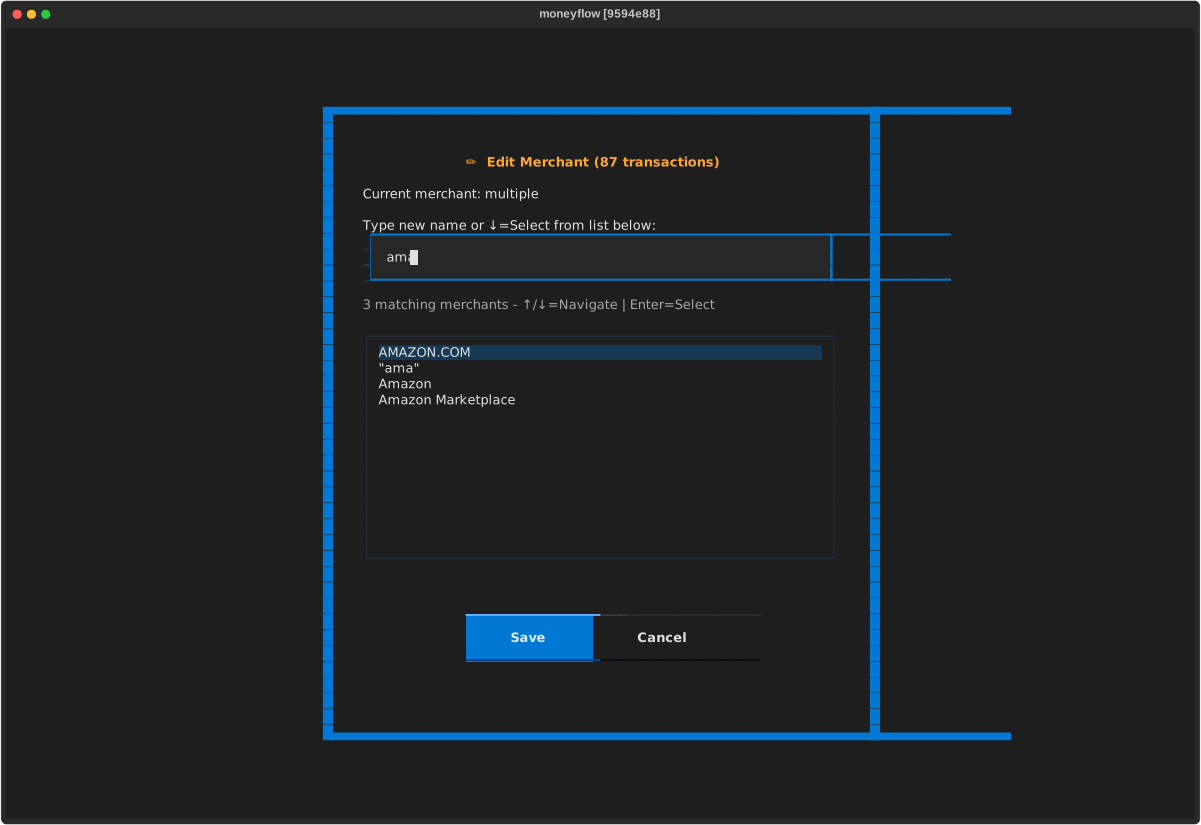
Done! The change is now saved.
Next Steps
- Keyboard Shortcuts - Learn all the keybindings
- Navigation & Search - Understand the different views
- Editing Transactions - Master bulk operations
- Monarch Money Guide - Detailed Monarch-specific documentation
- YNAB Guide - Detailed YNAB-specific documentation
- Amazon Mode - Analyze Amazon purchase history
Multiple Accounts
moneyflow supports multiple accounts! You can add Monarch, YNAB, and Amazon accounts and switch between them from the account selector on startup.
Need Help?
- FAQ - Common questions
- Troubleshooting - Fix common issues
- GitHub Issues - Report bugs